
What goes into an SDI schedule
An SDI schedule is the weekly map of when each student on your caseload receives Specially Designed Instruction and related services. It has to satisfy four constraints at once:
- Student availability — when the student is not in core academic instruction, lunch, specials, or other non-negotiable blocks.
- Your availability — the periods or time chunks when you can deliver SDI.
- Service requirements — the minutes per week mandated by each student's IEP for each service type.
- Group compatibility — students receiving the same service type at the same support level can often be grouped, but only if their class schedules allow it.
Most scheduling problems happen because teachers track these four variables in separate places — a master schedule PDF from the office, their own calendar, a spreadsheet of IEP minutes, and their memory for group assignments. The first step to a conflict-free schedule is getting all four inputs into one place before you start blocking time.
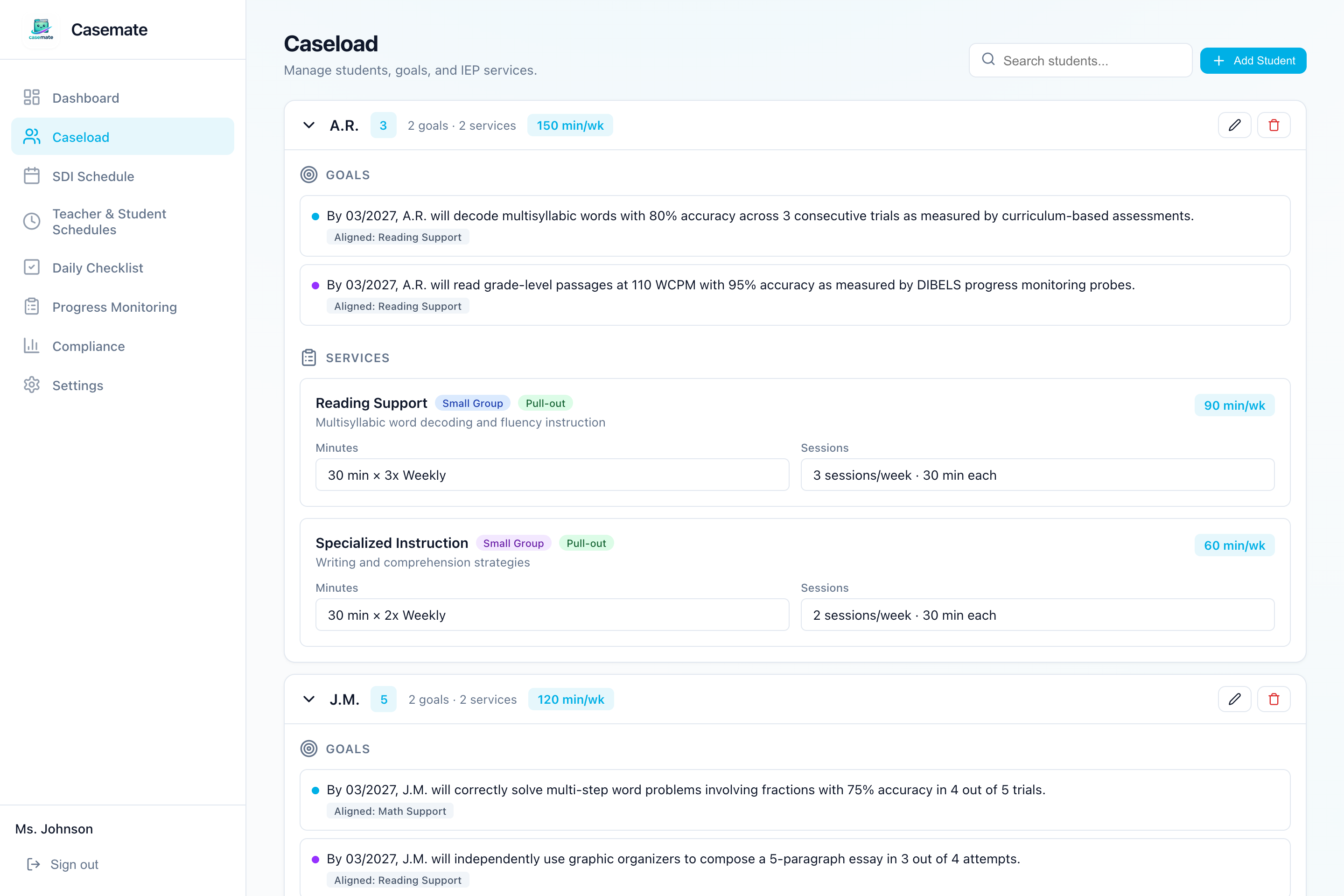
Start with your caseload: enter every student's services
Before you can schedule anything, you need a complete, accurate list of every service every student is owed this year. Pull out each IEP and record:
- Service type (reading support, math support, speech-language, OT, counseling, behavior support, etc.)
- Minutes per week (or per month — convert everything to weekly for scheduling purposes)
- Sessions per week (a student owed 60 minutes/week could be served in two 30-minute sessions or three 20-minute sessions)
- Support level (1:1, small group, push-in, self-contained)
- Any timing restrictions the IEP notes — "must be during reading block," "not during lunch," "must be consecutive minutes"
This list is your ground truth. Every scheduling decision flows from it. If a student's IEP says 90 minutes per week of specialized reading instruction delivered in small groups, you cannot schedule 60 minutes and call it done — and you cannot count push-in time during whole-class instruction as SDI unless the IEP explicitly describes that setting.
IEP Casemate reads this service data directly from each student's profile, so the minute requirements and session counts are already in the system by the time you open the schedule generator.
Map the bell schedule and your availability
Next, map your school's bell schedule — the named periods, their start and end times, and which days they meet. This is the grid your schedule lives inside.
Within that grid, mark the time chunks when you are actually available to deliver SDI:
- Periods when you are not co-teaching or covering other commitments
- Blocks within periods when you prefer to pull students (e.g., the second half of a 90-minute block, after whole-class instruction ends)
- Days when a period runs differently (Wednesday early release, Thursday advisory)
Most case managers are available for SDI during some periods but not others, and the availability varies by day. A Monday/Wednesday/Friday reading block looks different from a Tuesday/Thursday science period. If you track availability at the period level — "available all of Period 3" — you'll end up scheduling students during times when you're actually occupied. Tracking it at the chunk level (which 30 minutes within Period 3) prevents that.
Once your bell schedule and availability are set, the scheduling constraint becomes concrete: you need to fit each student's required service minutes into the overlap between your available time and the student's free time.
Enter each student's class schedule
For each student, enter which class they're in during each period. This is where most manual scheduling breaks down — cross-referencing 15 student class schedules against your own availability takes hours, and any error means a student gets pulled during math when you promised the team you'd avoid core instruction.
The key data points per student per period:
- Class name (Math, Reading, Specials, Lunch, etc.)
- Room number (optional, but useful for push-in routing)
- Whether the period is instructional or non-instructional
The critical constraint: students should not be pulled from core academic instruction for the service that instruction addresses. If a student has an IEP for reading support, pulling them during their only reading period defeats the purpose and is generally frowned upon by general education teachers. Build that restriction into the schedule from the start.
Once every student's class schedule is entered, you have a complete picture of when each student is free — and the schedule can be generated by finding the overlap between their free time and yours.
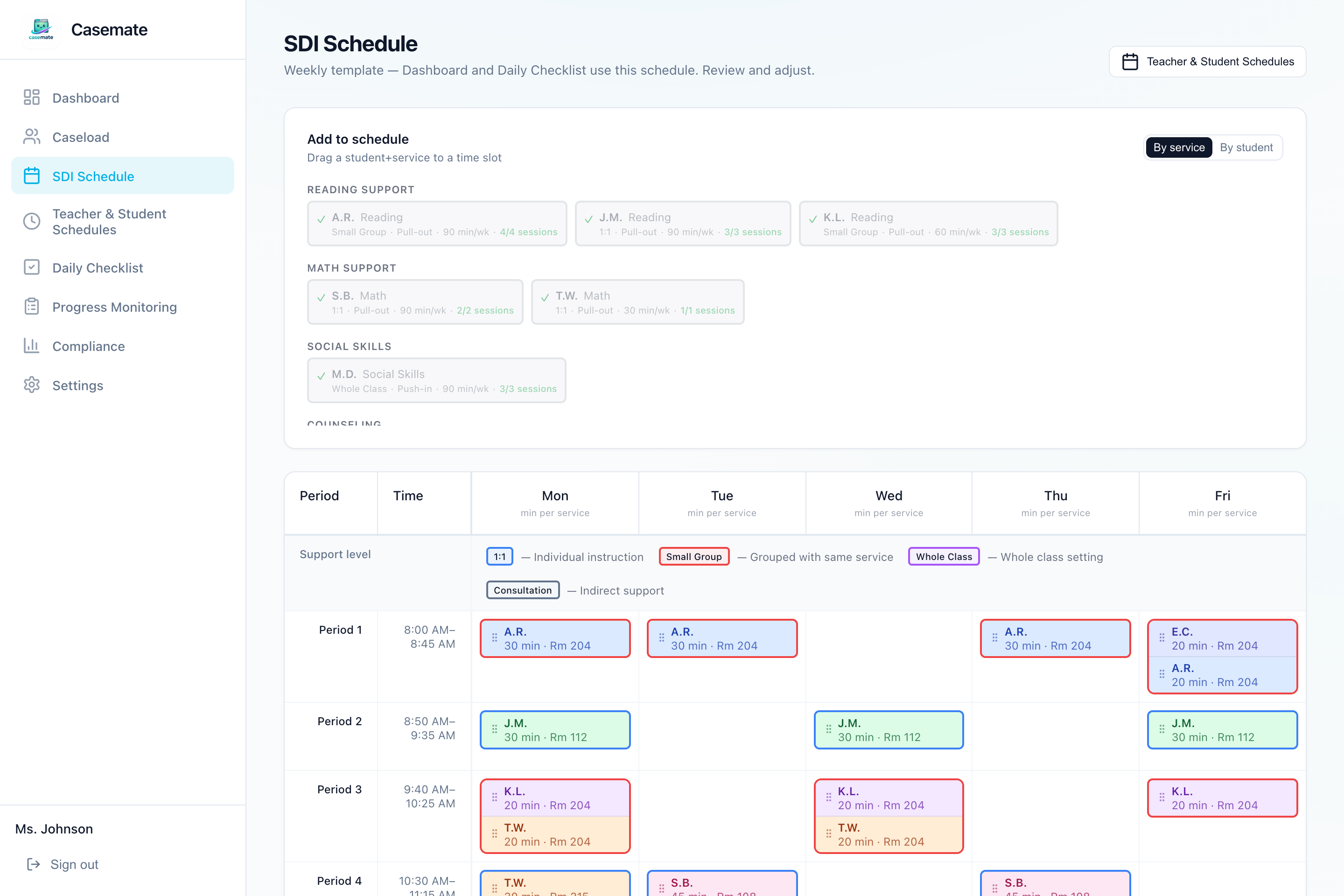
Generate the schedule and review conflicts
With student services, bell schedule, teacher availability, and student class schedules all entered, you have everything needed to generate a weekly schedule.
A good schedule generator will:
- Place each student's required service minutes into available slots
- Respect timing restrictions from the IEP
- Group students with the same service type and support level when their free periods overlap
- Flag conflicts rather than silently ignoring them
Conflicts fall into two categories. Hard conflicts mean the schedule is impossible as built — a student is double-booked, a session overlaps a period they can't miss, or the total minutes available don't add up to what the IEP requires. Hard conflicts need to be resolved before the year starts. Soft conflicts are warnings — a student is being pulled during a period that's suboptimal, or a group has more students than your preferred maximum. You can proceed with soft conflicts but should note them.
Drag-and-drop adjustment handles cases where the generator's first pass isn't quite right. If a student needs to move from Tuesday's Period 2 slot to Wednesday's Period 4 slot, that's a one-second fix — not a rebuild.
Log services from your schedule every day
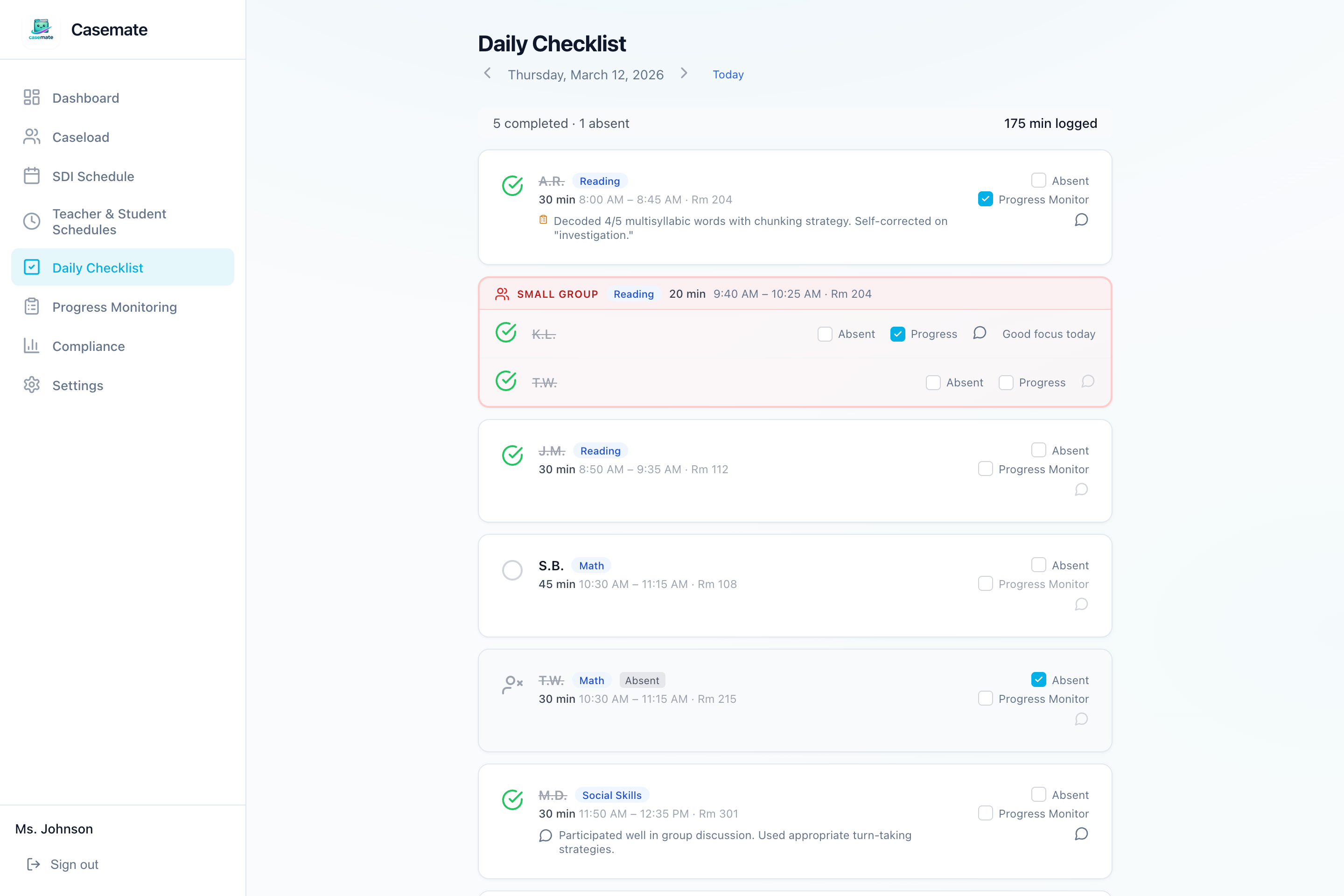
A schedule is only as good as the records that flow from it. The daily checklist surfaces exactly who you need to see today, in what order, for how many minutes — so nothing slips and your compliance numbers are always current.
Each day, mark each session as completed, missed, or partially delivered. If a student was absent, note it. If a session ran short because of a school event, log the actual minutes. These logs become the evidence trail that answers "did this student receive their IEP minutes?" at any point during the year — at a parent meeting, an annual review, or a compliance audit.
The running minute tally updates in real time as you log. You can see at a glance whether you're on track, behind, or ahead for the week — without touching a spreadsheet.
Maintaining the schedule when things change
No schedule survives the first week of school unchanged. Students change classrooms, a related service provider updates their hours, a student moves from small group to 1:1 — any of these requires an update.
The key discipline is updating the schedule source, not working around it. If a student's class schedule changes and you adjust your mental model without updating the system, you'll be back to a spreadsheet-style tracking problem within a month.
A few common mid-year updates and how to handle them:
- Student changes classrooms: Update the student's class schedule for the affected period. The scheduling system will surface any new conflicts.
- New student added to your caseload mid-year: Add the student, enter their services and class schedule, and regenerate or manually slot their sessions. Existing slots don't move.
- Related service provider updates their availability: Update their schedule availability, then check whether any currently scheduled sessions land in now-unavailable slots.
- IEP amendment changes service minutes: Update the service requirement, then check whether existing scheduled sessions deliver the new total. If not, add sessions or extend existing ones.
The goal is that at any point in the year, the schedule in the system reflects what you're actually delivering — so compliance reports, progress notes, and IEP updates all pull from the same source of truth.